How to use Kvali
Every screen in the Kvali app and what to do with it, from setting up a shared household to planning a week, shopping from the list and cooking step by step.
1 Install and sign in
Kvali is free on the App Store. Open it and tap Create account: an email address, a password, and your name. The name is what everyone else in your household sees next to the things you add, so use something they will recognise.
If you forget the password later, Forgot your password? on the login screen sends a six-digit code to your email. The code works for fifteen minutes.
2 Create a household, or join one
A household is the unit Kvali works in. The plan, the shopping list and any recipe you share belong to the household rather than to you, so everyone in it sees the same thing at the same time.
The first time you sign in you get the choice. Create a household and give it a name, or Join with invite code if someone at home has already made one. The person who created it finds the code in the Household tab, under the household name; tapping it copies it.
Members have a role - Admin, User or Shopper - which you can change from the same tab, along with removing someone from the household.
3 Three settings to get right first
All three are in the Household tab, and all three apply to the whole household rather than to you alone.
Language & units decides whether recipes reach you in English or Danish, and whether amounts are metric (g, ml, dl) or imperial (oz, cups, fl oz).
People we cook for is the default number of servings when a recipe goes into the plan. Count everyone at the table, including children and anyone who does not have the app.
Meal plan type is the diet the planner stays inside: omnivore, plant-based, low-carb or keto.
4 Find a recipe: search and topic filters
The Recipes tab is the whole collection. The field at the top searches by name, and the four buttons to its right narrow the list in different ways. Each one clears the others, so you are only ever in one mode at a time.
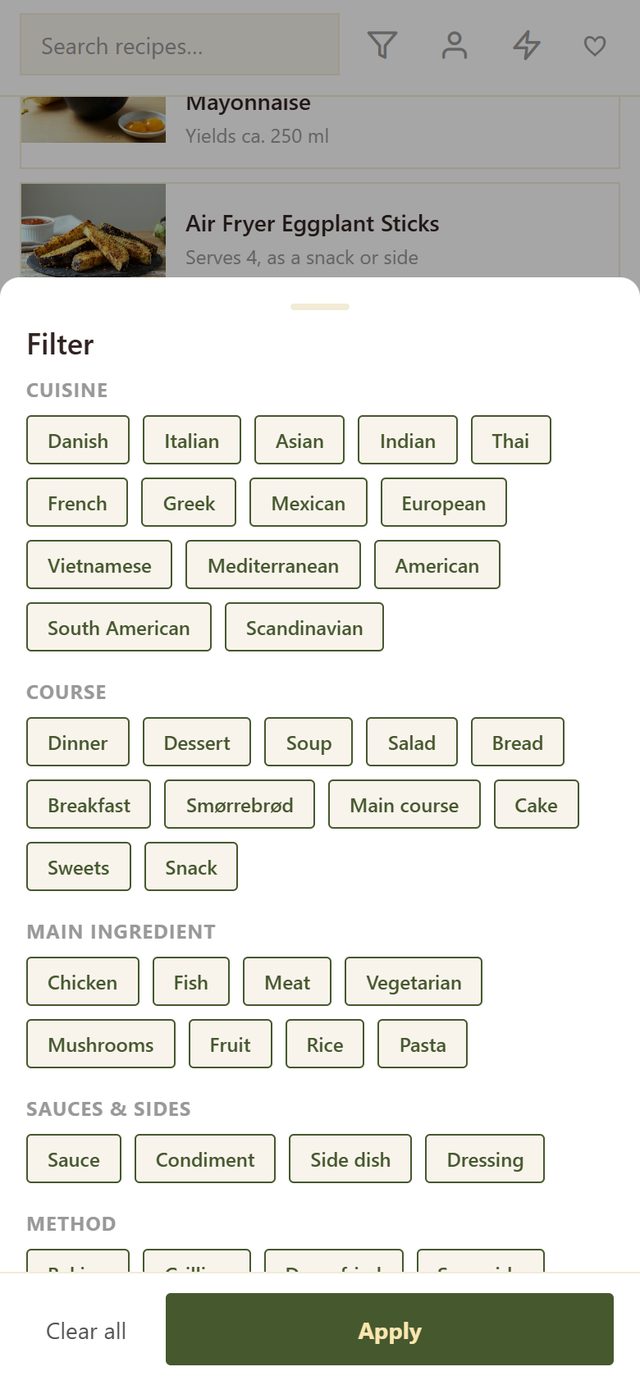
The funnel opens the topic filter: chips grouped by facet, covering cuisine, course, main ingredient, sauces and sides, method, dietary and theme. Tap as many as you like and press Apply. Topics combine with AND, so Italian plus Fish gives you Italian fish dishes, not everything Italian and everything with fish. The badge on the funnel counts how many are active, and Clear all empties the sheet.
Only topics that have recipes behind them are offered, so the list grows on its own as new recipes are tagged.
The other three buttons are shortcuts. The person shows the recipes your household wrote, the lightning bolt shows the app-only weeknight recipes (next section), and the heart shows your favourites.
5 The 400 recipes that only exist in the app
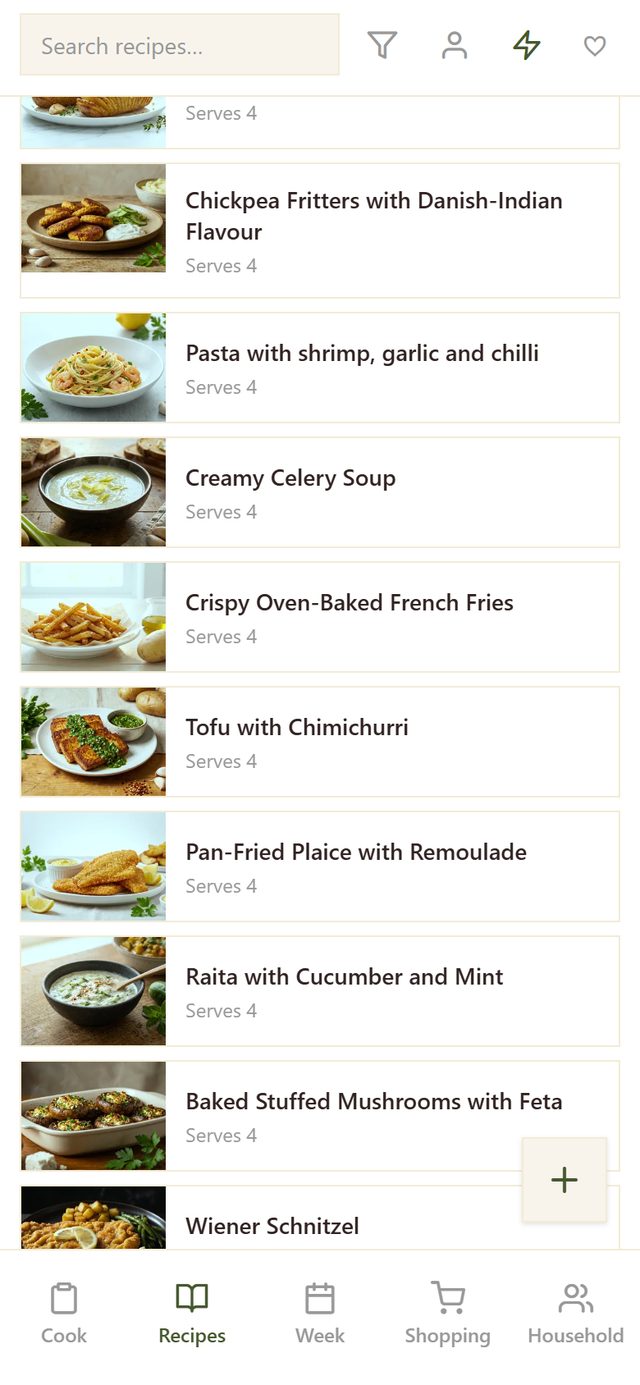
Everything published on this website is in the app, and on top of that come more than 400 recipes written for the app alone. They are not on kvalifood.com at all.
They are small on purpose. Each is one component of a dinner rather than the whole evening: this is the protein, this is the potatoes, this is the green thing on the side. That is what makes the planner’s protein / carbs / veg slots work, and it is the pool Generate meal plan draws from when it fills a week.
Reach them with the lightning bolt in the Recipes tab. If you want a weeknight dinner assembled out of parts rather than one long recipe, start here.
6 Open a recipe: scaling, variants and nutrition
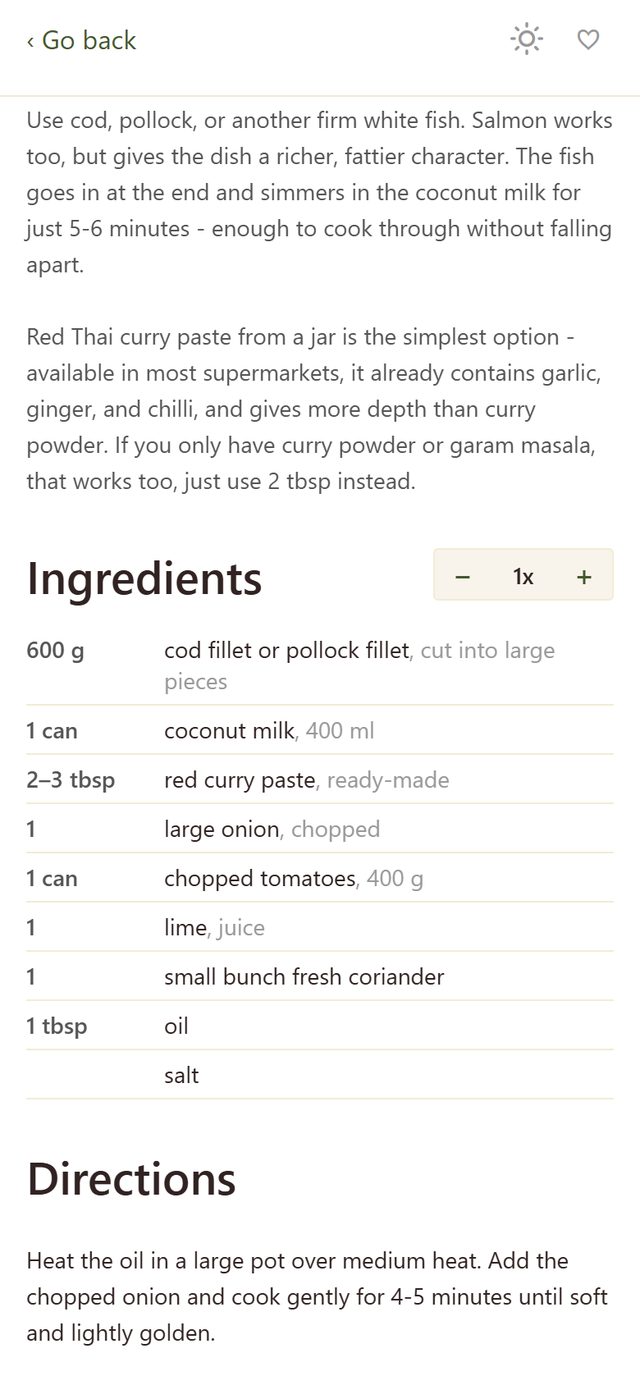
Tap any recipe to open it. The - 1x + control beside Ingredients multiplies the amounts, from a quarter upwards, so you can cook the same recipe for two or for eight without doing the arithmetic. It is hidden when you open a recipe from a planned meal, because there the plan’s serving count is already driving the scaling.
Some recipes have a gluten-free version, and the toggle switches the ingredient list between the two. Setting it here only changes what you are looking at. To make it stick for a meal you are cooking, set it on the planned dish in the Week tab instead, and the shopping list follows too.
Where the ingredient data allows it, nutrition per 100 g is listed under the directions. Recipes where too many ingredients are unknown say so instead of guessing.
7 Favourites: getting a recipe from this site into your week
Favourites are the bridge between browsing and planning. If you find a recipe on this website that you want to cook, the route into your week runs through the heart.
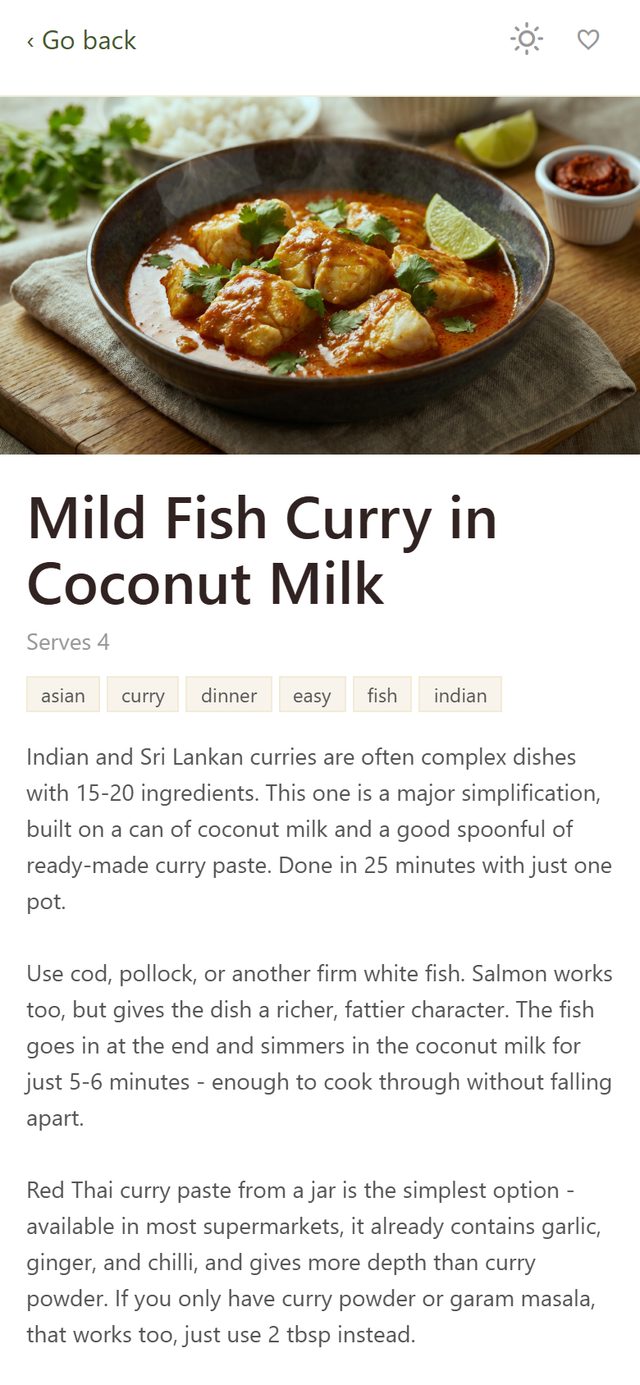
Save a recipe. Open it in the Recipes tab and tap the heart in the top right. It is now in your favourites, which you can list at any time with the heart button in the Recipes tab header.
Put it in the week. Go to the Week tab, pick the day, and use + Add favourite under the meal instead of + Add recipe. That gives you a picker of everything you have saved, which is a much shorter list than the whole collection. Choose the recipe and it lands in the meal at your household’s default serving count.
Save a whole meal, not just one dish. When a day’s combination works - the roast, the potatoes and the salad together - tap the heart on the meal heading rather than on a single dish. That saves the whole group as one favourite. Later, + Add favourite on another day drops all of its recipes back in at once, as a unit.
Both kinds live together under the heart filter in the Recipes tab: saved recipes appear as ordinary recipe cards, and saved meals as a card you can expand to see the dishes inside. Tapping the heart on a saved meal removes the whole group.
Favourites only in the Week tab draws on the same list. Switch it on and Generate meal plan builds the week from what you have saved instead of the whole collection.
8 Plan a week
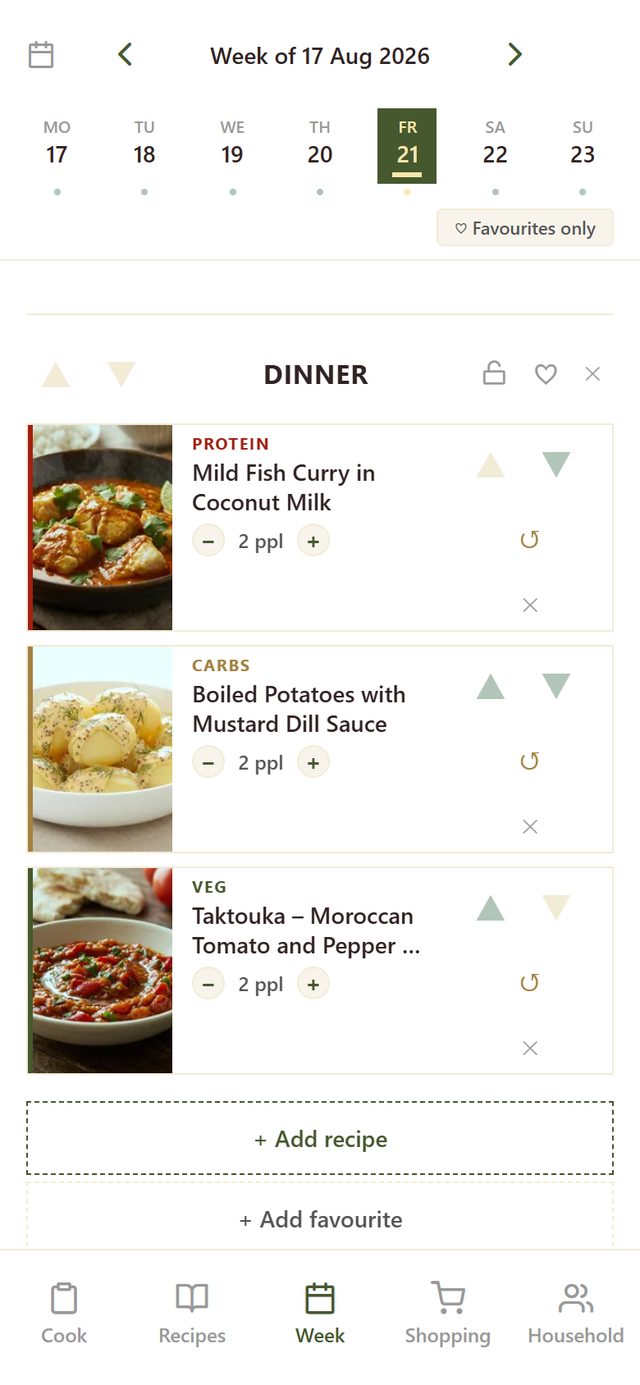
The Week tab shows one week, one day at a time. The strip across the top moves between days, the arrows either side of the date move between weeks, and a dot under a day means something is planned for it.
A day is made of meals. A meal is a heading with dishes under it, and each dish has a role: protein, carbs, veg. + Add recipe searches the collection, + Add favourite picks from what you saved, and + Add breakfast or lunch puts another meal on the day.
Per dish you can change the servings with the minus and plus buttons, move it up or down inside the meal, shuffle it for a different recipe in the same role, or remove it.
The padlock on a meal heading freezes it. A locked meal and its dishes survive a reshuffle and cannot be edited or reordered until you unlock them. The heart beside it saves the whole meal as a favourite, as above.
For an empty week, Generate meal plan fills it in one go. Switch on Favourites only first if it should draw from what you have saved instead of the whole collection.
9 Shop
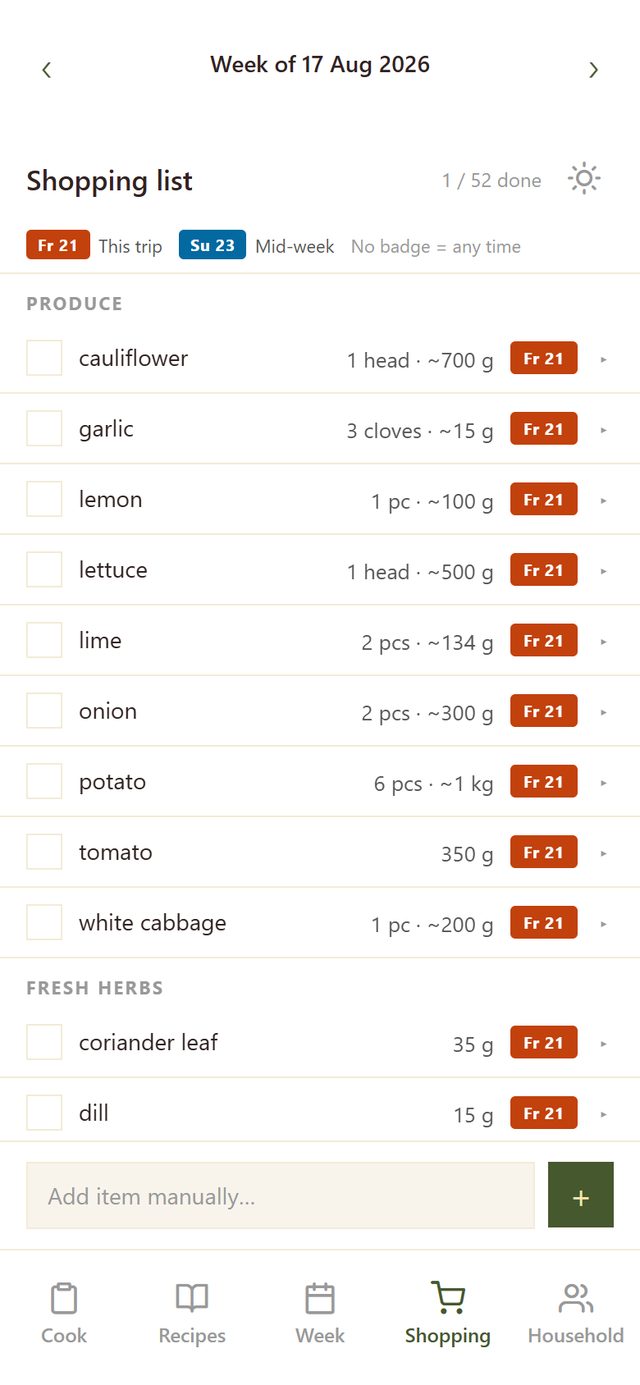
The Shopping tab always shows the list for whichever week the planner is on, and it builds itself. There is nothing to press to make it appear.
Lines are combined by ingredient and grouped by aisle, in the order you walk a supermarket. The coloured badge is the trip: This trip for what you need now, Mid-week for what would not survive being bought this early, and no badge at all for anything that can wait. Tap a line to see which recipes it came from.
Tap the box to tick something off. It moves to the bottom under DONE, and it disappears for anyone else in the household who happens to be shopping at the same time. Add item manually at the bottom covers everything the plan does not know about, and you can put it in an aisle so it turns up in the right place in the list.
10 Cook
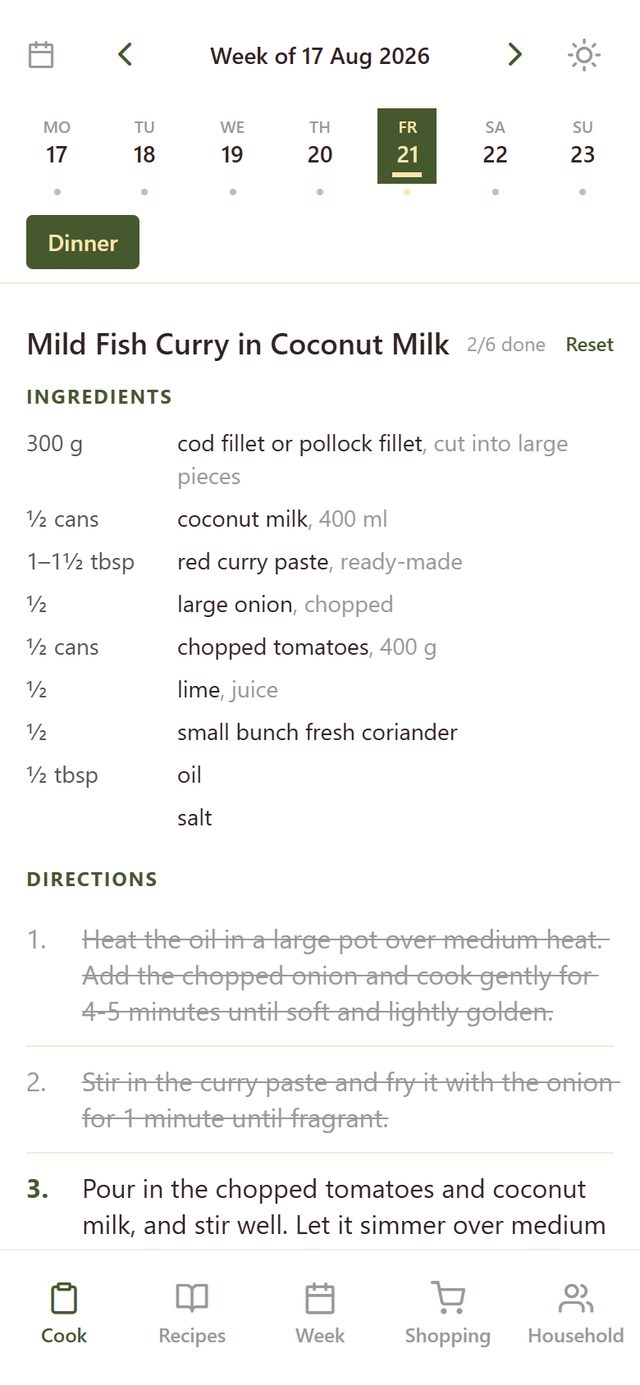
The Cook tab opens on today. If more than one meal is planned for the day, the chips under the date choose which one you are cooking.
Each dish gives you its ingredients at the planned number of servings, then the directions split into steps. Tap a step to strike it out; the counter beside the title tracks how far along you are, and Reset clears it. The sun icon in the header keeps the screen awake while you cook.
The tab keeps up with the date on its own, so it is on tonight’s food when you open it in the evening. Once you deliberately move to another day it stays there until you tap the calendar button to come back to today.
11 Write your own recipes
New recipe in the Recipes tab is for the ones that are not in any collection: name, ingredients one per line, directions, and a photo if you want one.
Leave Share with household off and it stays a private draft that only you can see. Turn it on and everyone in the household can plan it like any other recipe - which is why sharing needs a name, ingredients, directions and a serving count before it will let you. If something is missing it saves as a draft and tells you what to add.
Add as a full recipe is for cakes, bread and anything else made in batches. It gets planned at its own yield instead of being scaled to the number of people in your household.
Your own recipes sit behind the person button in the Recipes tab.
12 Data, privacy and getting help
These sit at the bottom of the Household tab.
Download my data exports everything the account holds. Delete account removes your account, your unshared drafts and your settings, behind two confirmations. Recipes you shared with the household, and the plans and lists you built together, stay with the household.
Feedback sends a bug report along with your platform and app version, which is usually what makes a problem findable. You can also write to maxm@mxm.dk.
The privacy policy covers what is stored and why, and the support page covers the rest.